Step 2. Check for
your local dialup# and write it down
here__________________
Step 3. Register
online fill in your user name here_____________
password
here( use at least
1 number in your password )__________________
Step
4.Request
information about FREE XDSL so you can
connect
up to 200 times faster for free 
Step 5. Setup Configuration
Use
the following method to easily set up
your Dialup Networking
Go to your
windows desktop and Double Click My
Computer 
Double Click the
folder marked Dial-Up Networking

Double Click
Make a New Connection 
Type in the name you want to call your
connection and select your modem. 
Type in the local access phone
number from step 2.

Click Finish to Setup your
connection.

In the Dial-Up Networking Folder, find
your new connection and right click on
it.
Click on Create Shortcut. 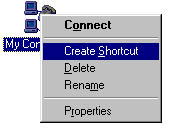
Windows will tell you that it can't
place a shortcut in the folder and
asks if you would like to place a
shortcut on the desktop, choose
"yes."

Go to your Desktop and find the
connection to your shortcut and Double
click on it.

Enter your User Name and Password from
step 3 above, if you like, check Save
password.
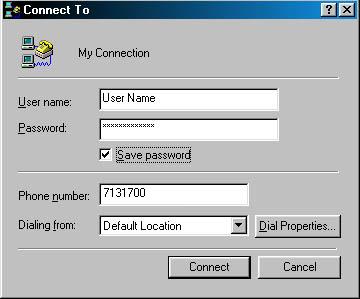
To
set the DNS settings
for your Computer
Right Click on the My Connection
Icon in your Dial Up Networking folder
and select Properties:
Click on the "Server
Types" tab. 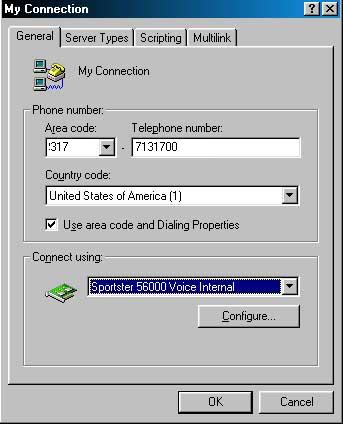
Then Click on TCP/IP
Settings: 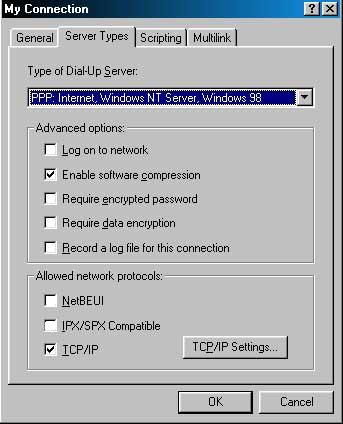
Enter the following
information:
The DNS
setting for your computer are:
Primary
DNS: 216.70.64.1
Secondary
DNS: 216.70.64.2
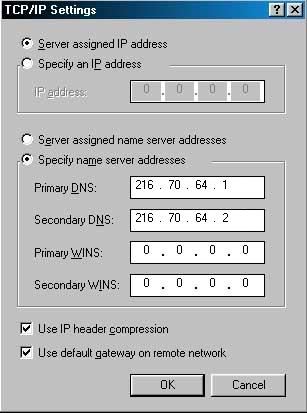
For
Netscape 4.xx Email setup use these
instructions:
Open up your Netscape Communicator
browser
Click on Edit
Click on Preferences
Click on the (+) next to Mail &
Groups
Click on Identity
Enter your name,
Email address (e.g.
johndoe@freewwweb.com)
And return address (same as email
address)
Next, Click on Mail Server (Under Mail
& Groups)
Fill in the first three Boxes as
follows:
User Name: johndoe
Outgoing Mail: smtp.freewwweb.com
Incoming Mail: pop3.freewwweb.com
Also, the Mail Server Type
"Pop3" should be checked
If you want to set up the news
server:
Click on Groups Server (Under Mail
& Groups)
Enter in the News Server:
news.freewwweb.com
Click OK
For Netscape 3.x
Email setup use these instructions:
Click on Options from the
menu
Then click on Mail and Network
Preferences
Click on the Servers tab
Fill in the first three Boxes as
follows:
Outgoing Mail Server: smtp.freewwweb.com
Incoming Mail Server: pop3.freewwweb.com
Pop3 User Name: (Example:
johndoe)
Under News (NNTP) Server enter:
news.freewwweb.com
Then click on the Identity tab
Fill in your name, your email and
return email address
(Example: johndoe@freewwweb.com
)
Then Click OK
For
Microsoft Outlook Express setup use these
instructions:
Open
Outlook Express
Click on Tools
Click on Accounts
Click Add
Type your Name
Click Next
Type in your E-Mail Address (Example:
johndoe@freewwweb.com)
Click Next
Type in your POP Account: pop3.freewwweb.com
Type in your SMTP Account: smtp.freewwweb.com
Click Next
Type in your user Name: johndoe
Type in your Password (Example:
*****)
Check to save your Password, at this
time if desired
Click Next
Click Finished
|