
TYCHE COMUNICATIONS
*an authorized freewwweb
dealer*
Macintosh Dialer Set-Up
All
parts of these instructions must be
completed
in order for your connection to work.
Make
sure you have these components before
continuing these set-up instructions.
MacTCP 2.0.4 or higher
At
least 16 mb of RAM
Modem
at least a 28.8 bps
* Unless you have a clean copy
of MacTCP,
go to the System folder on your hard disk.
Find the MacTCP DNR and drag it to the Trash.
Open
the Preferences folder and
find the PPP preferences and drag that to the
Trash also.
Now you have to make changes to your MacTCP
and Configure PPP.
Choose
MacTCP from Control Panel

Highlight
the PPP and click on More ....
The following should be the settings for your
MacTCP.
Make sure you add all the periods..
Under Obtain Address: Fill in the circle
for Server
Under Domain type in:
smartworld.net
Default circle next to the above, should be
highlighted.
When finished, click OK and close the Control
Panel. You must now restart your computer.
The
Configure PPP should look like the following:
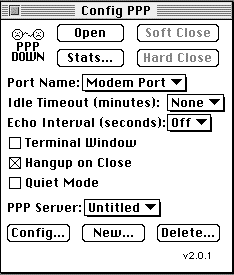
Click New
....
Type in smartworld.net in the
PPP server name.
Clicking OK will go back to the Configure PPP
screen.
Make sure you enter in the dial up number for
your computer to dial into.
Click Connect
Script
Right now, it should be empty like the following.

Click OK to go back to Configure
Click LCP Options
The screen should look like the following:

Click OK to go back to Config...
Then Click on Authentication....
Just type in your User Name and
Password...This is case sensitive !

Click OK to go back to Config... Click IPCP
This is what it should look like!
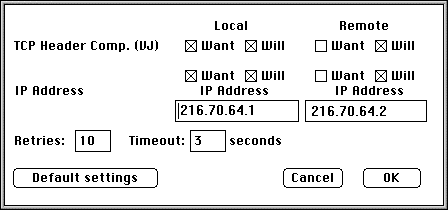
Click OK to go back to Config...
Click Done, to back up to Config PPP screen.
Make sure to choose the PPP server:
smartworld.net
Then you may click Open to make a connection
with us.
That's
All! Welcome to freewwweb™!


|


